Self-Host Your First App in 15 Minutes with Docker Compose
Every app you rent is a subscription you’ll pay forever. Somebody else hosts it, somebody else controls it, and the invoice never stops. In this guide you’ll self-host your first app on your own hardware, using one text file and one command, even if you’ve never touched a container. By the end, you’ll type an address into your browser and your own app will load from your own server. We’ll cover what Docker Compose actually is, the five concepts that let you read almost any Compose file, and the two failure states that stop most beginners cold.
TL;DR: Install Docker with the official script from get.docker.com, write a
compose.yamlwith five things (a service, an image, a port mapping, a volume, and a restart policy), then rundocker compose up -d. Your app is live athttp://your-server-ip:port. That’s the whole deployment.
This post is the companion to my latest video. Prefer the video version? It’s live now:
Why self-host at all
Let me be straight with you first, because I won’t sell you a fantasy: self-hosting is not really about saving money. By the time you count the hardware, the electricity, and your own time, that “free” app often isn’t cheaper than paying a few euros a month.
You do it for three real reasons. You own your data: nobody is mining it or holding it hostage. You control it: it doesn’t change or vanish because a company pivoted or got acquired. And you learn: everything in this post is a transferable skill you’ll use in every homelab and half the IT jobs out there. The no-subscription part is a bonus, not the point. If someone sold you self-hosting purely as “save money,” that’s the wrong reason, and it’s why most people quit.
What Docker and Compose actually are, in one breath
A container is an app packed in a box with everything it needs to run: the code, the runtime, the libraries. Docker is the thing that runs the boxes. A Compose file is a recipe: a short text file describing the app you want, which Docker then builds for you. That’s it. No orchestration buzzwords required for what we’re doing today.
What you need
One Linux machine with Docker on it. If you followed my Proxmox home server build, a small VM on that box is perfect. No homelab yet? A Raspberry Pi works fine. The one rule for today: the machine lives in your home, on your own network. We’re not exposing anything to the internet in this post (more on that at the end).
Install Docker Engine the official way
Set up Docker’s apt repository.
1
2
3
4
5
6
7
8
9
10
11
12
13
14
15
16
17
18
# Add Docker's official GPG key:
sudo apt update
sudo apt install ca-certificates curl
sudo install -m 0755 -d /etc/apt/keyrings
sudo curl -fsSL https://download.docker.com/linux/ubuntu/gpg -o /etc/apt/keyrings/docker.asc
sudo chmod a+r /etc/apt/keyrings/docker.asc

# Add the repository to Apt sources:
sudo tee /etc/apt/sources.list.d/docker.sources <<EOF
Types: deb
URIs: https://download.docker.com/linux/ubuntu
Suites: $(. /etc/os-release && echo "${UBUNTU_CODENAME:-$VERSION_CODENAME}")
Components: stable
Architectures: $(dpkg --print-architecture)
Signed-By: /etc/apt/keyrings/docker.asc
EOF

sudo apt update
Install the Docker packages.
1
sudo apt install docker-ce docker-ce-cli containerd.io docker-buildx-plugin docker-compose-plugin
This installs Docker and Compose in one go. Which brings us to the first thing that trips people up.
If an older tutorial tells you to run
docker-compose(with a hyphen), it’s outdated. Modern Compose is built into Docker and runs asdocker compose(with a space). If you type the hyphen version on a fresh install, you’ll getcommand not foundand wrongly conclude the install failed. It didn’t. Drop the hyphen.
The Compose file: five concepts and you can read almost any of them
Here’s the entire mental model. A Compose file has five things you care about:
- services: the app (or apps) you want to run.
- image: which app to download, and which version.
- ports: which door opens, written as
host:container. The left number is what you type in your browser; the right number is what the app listens on inside its box. - volumes: where the app’s data lives on your machine, so it survives a restart. Never skip this.
- restart: unless-stopped: the app comes back on its own after a reboot or a crash.
In the video I deploy PrivateGlue, a little documentation tool I built, and it’s genuinely the right first app: you just built a server, you need somewhere to write down its details. Here’s the Compose file:
1
2
3
4
5
6
7
8
9
10
11
12
13
14
15
16
17
18
19
services:
  privateglue:
    image: ghcr.io/marcmylemans/privateglue:latest
    ports:
      - "5000:5000"
    volumes:
      - ./notes:/app/notes
      - ./data:/app/data
      - ./backups:/app/backups
      - secretkey:/app/secret  # use a named volume
    restart: always
    healthcheck:
      test: ["CMD", "curl", "-f", "http://localhost:5000/"]
      interval: 30s
      timeout: 10s
      retries: 3
      start_period: 10s
volumes:
  secretkey:
Save that as compose.yaml in an empty folder. Any Docker-ready app works the same way (Uptime Kuma, Memos, Homepage, take your pick); the five concepts don’t change, only the values do. Learn to read these five lines and you can read almost any Compose file you find online.
Bring it to life
From the folder where your compose.yaml lives:
1
docker compose up -d
Docker pulls the image, creates the container, and starts it in the background (-d for detached). One file, one command. That is the entire deployment.

Access it (this is the moment)
Open a browser on any device in your house and go to http://your-server-ip:port, using the left port number from your Compose file. Find the server’s IP with ip a on the machine itself.
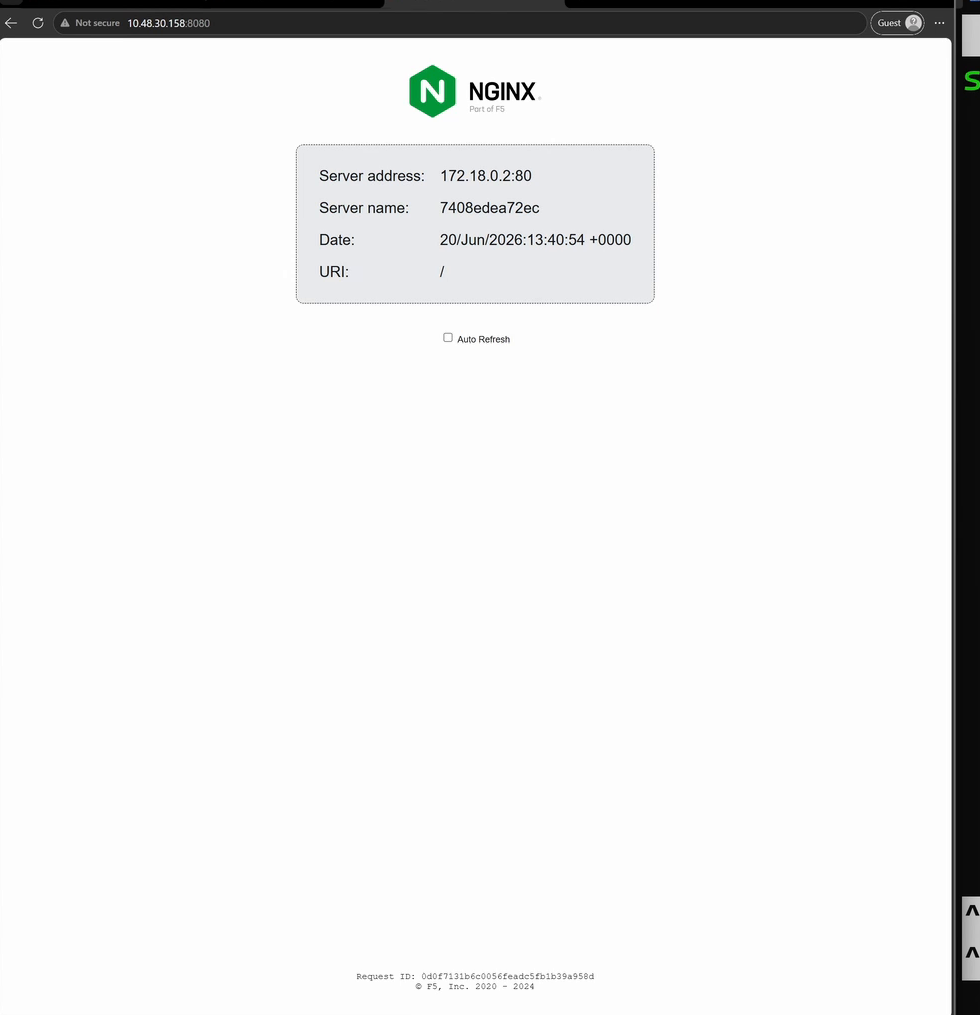
That is a real application, running on a server you control, from a ten-line text file. No subscription. No account on someone else’s cloud. Yours.
The two failure states that stop beginners (and the fixes)
If you only follow happy-path guides, one of these two walls will get you. Here’s the real troubleshooting.
1. “permission denied while trying to connect to the Docker daemon socket”
You run docker compose up -d and get a wall of red about /var/run/docker.sock. This is the single most common first-day failure, and it’s not broken: your user just isn’t allowed to talk to Docker yet.
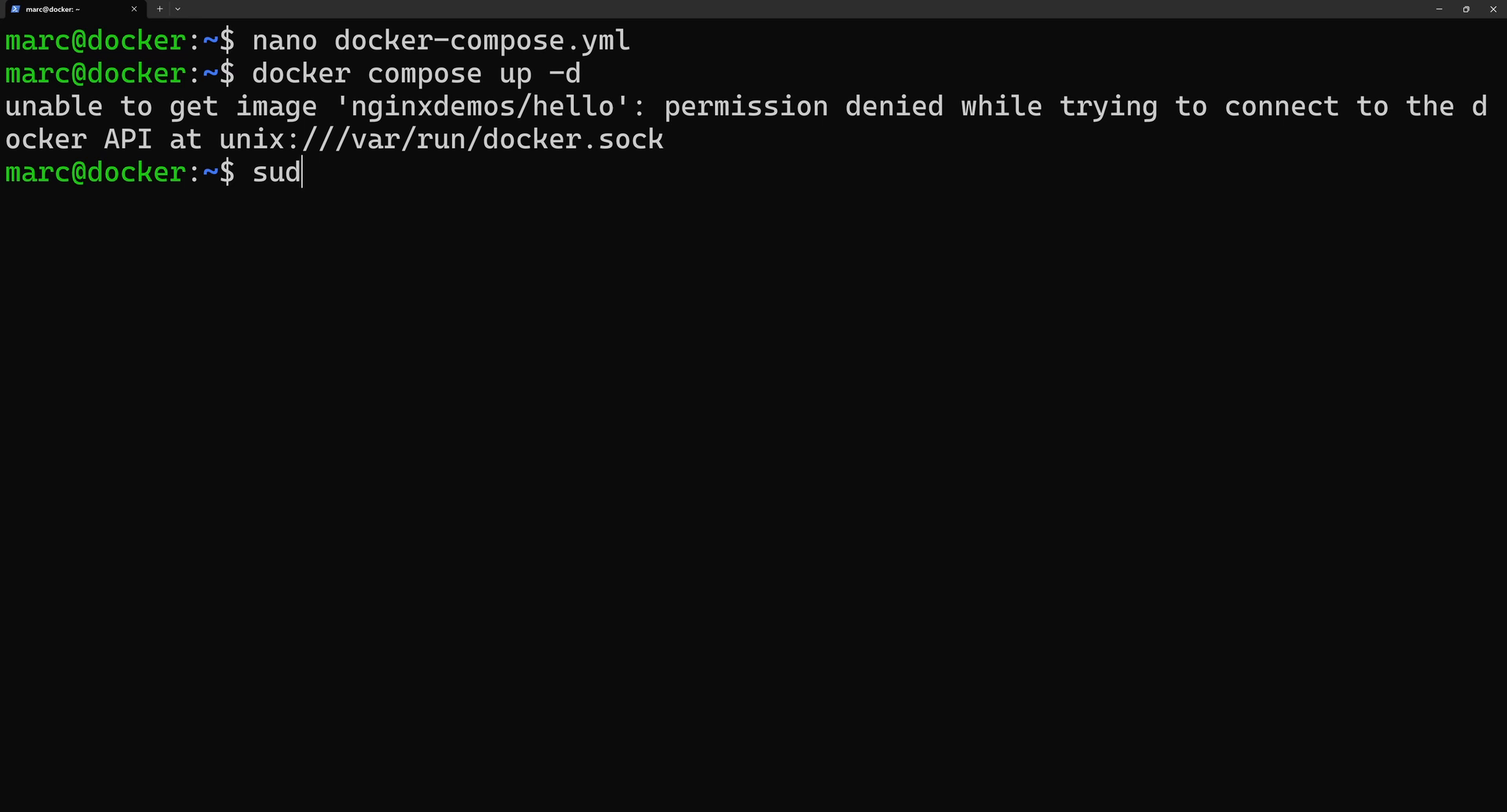
The fix is one command and one logout:
Create the docker group.
1
sudo groupadd docker
Add your user to the docker group.
1
sudo usermod -aG docker $USER
Then log out and back in (or reboot). That second step is the part everyone skips, and then they think the fix didn’t work. Group membership only applies to new sessions.
2. Your data vanishes after an update
You run the app for a week, pull a new version, and everything you saved is gone. That’s what happens when the volumes line is missing: the data lived inside the container, and the container is disposable by design. This is why rule four above says never skip volumes. The ./data folder next to your Compose file is your app’s memory; the container is just the engine. If you’re ever unsure, the app’s own documentation lists which container paths need a volume.
The pro check
Before you call it done, run docker compose ps and confirm the state says running, then reboot the server once and check the app comes back on its own. If it does, your restart policy and your volume are both doing their job, and you’ve deployed this properly rather than just gotten lucky.
The one catch, and it’s a big one
Right now this only works inside your house. The second you’re on mobile data, that address goes nowhere. Reaching your app from anywhere, securely, without punching holes in your firewall, is a whole topic on its own, and it’s the very next thing you’ll want. I’m covering exactly that in the next video in this series, so this is where I leave you deliberately hungry.
FAQ
Do I need a VPS or can I use a Raspberry Pi? A Pi is plenty for a first app. Anything that runs Linux and Docker works: an old laptop, a mini PC, a VM on a Proxmox box. Start with hardware you already own; buy nothing until you’ve outgrown it.
Is self-hosting cheaper than subscriptions? Usually not, once you count hardware, power, and your time honestly. You self-host to own your data, control your tools, and learn skills, not to shave a few euros off a monthly bill.
What’s the difference between Docker and Docker Compose? Docker runs containers. Compose is the recipe file (and command) that describes what to run so you don’t have to type long docker run commands. On a modern install they come together, and you invoke Compose as docker compose, with a space.
Is it safe to expose my self-hosted app to the internet? Not the way we’ve set it up here, and that’s intentional. Everything in this post stays on your home network. Exposing services safely requires a proper remote-access setup, which deserves its own guide.
Recap
You installed Docker with one script, described an app in a ten-line Compose file, deployed it with one command, and watched it load at your own address. You also know the five concepts that make every other Compose file readable, and the two failure states that end most first attempts. Prefer to watch it happen? The full walkthrough is on Mylemans Online on YouTube.
Ready for the next step? The free Docker & Containers path on Mylemans Labs picks up exactly where this post ends: hands-on lessons, real exercises, and the skills to run more than one app with confidence. Go host something.