Build Your First Home Server in 30 Minutes (Proxmox)
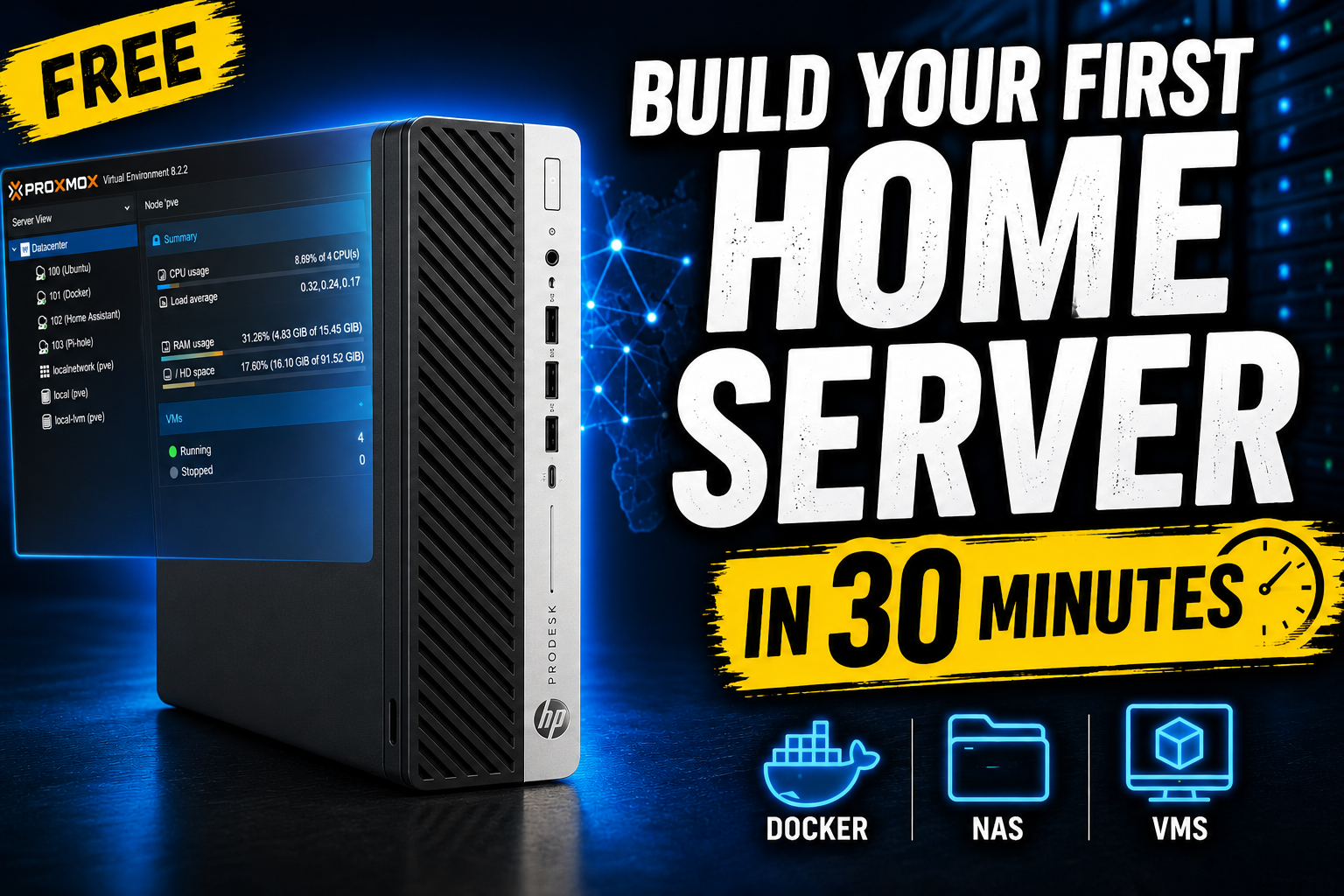
TL;DR: You can turn a cheap mini PC or an old desktop into a real home server in about 30 minutes. Install Proxmox VE (free), create your first virtual machine, and finish by running something useful like a network-wide ad blocker. You don’t need a server rack, expensive hardware, or prior experience. This is the companion guide to the video, with every step written down so you can follow along at your own pace.
If you have ever wanted your own home server but assumed it meant a noisy rack, a big electricity bill, and years of experience, this is for you. None of that is true. One small machine you already own, plus free software, gets you a real server you control, and you can have it running today.
This post is the written companion to my video. The video shows you the whole build; this guide is the reference you keep open while you do it, with the exact steps, the menu paths, and the one mistake that trips up almost every beginner.
What you’ll build
By the end you’ll have:
- Proxmox VE installed on a spare machine, acting as your always-on server.
- Your first virtual machine (VM) running inside it, a separate computer living on your hardware.
- One genuinely useful service running on that VM, so the server does something real on day one, not just sit there empty.
A virtual machine, if the term is new, is just one physical box pretending to be several independent computers. Proxmox is the free software that makes that possible and gives you a clean web dashboard to manage it all.
What you actually need
Three things, and none of them are expensive:
- A 64-bit machine with 4 to 8 GB of RAM. A dusty old laptop, a second-hand mini PC, or a cheap refurbished desktop all work fine. You do not need server hardware to start.
- A USB stick of 8 GB or more. This becomes the installer. Its contents get erased, so use an empty one.
- A second computer to download the installer and, afterwards, to reach the server in your browser.
That’s it. If you have an old machine gathering dust, your shopping list is one USB stick.
Step 1: Download and flash Proxmox VE
- On your normal computer, download the Proxmox VE installer ISO from the official Proxmox downloads page. It’s free.
- Write that ISO to your USB stick with a flashing tool such as balenaEtcher or Rufus (Windows).
Flashing erases everything on the USB stick. Make sure you’ve picked the right drive before you start.
Two steps in and nothing has exploded. Good. That’s the hardest part behind you.
Step 2: Install Proxmox and first boot
- Plug the USB stick into the machine that will become your server, and boot from it. The boot menu key is usually
F11,F12,DEL, orESCdepending on the machine. - Choose Install Proxmox VE and walk through the installer: accept the licence, pick the target disk (this erases that disk, so choose the right one), set your country and timezone, and set a root password and an email address.
- On the network screen, write down the IP address it shows you. That IP is how you’ll reach the server from now on.
- Finish the install, remove the USB stick, and let it reboot.
You’ll land on a plain black login screen. Don’t worry, you never really touch this screen again. Everything from here happens in your web browser.
Step 3: Open the web dashboard
On your normal computer, open a browser and go to:
1
https://YOUR-SERVER-IP:8006
Log in with user root and the password you set. Your browser will warn about the security certificate, that’s expected on a fresh install, so continue through it.
For today, only three things in this dashboard matter: your server in the left-hand tree, where your VMs will live, and the Create VM button in the top right.
Step 4: Get an OS image first (the step most guides skip)
Here’s where almost every beginner gets stuck. A fresh Proxmox server has no operating system images yet, so when you click Create VM, the dropdown to pick an OS is empty and confusing. Do this first:
- In the left tree, click your local storage.
- Open the ISO Images tab.
- Click Download from URL.
- Paste the download link for the OS you want (a lightweight Linux server like Debian or Ubuntu Server is perfect for a first VM), click Query URL, then Download.
Proxmox pulls the image straight onto the server itself. Nothing downloads to your own PC, and you don’t upload anything. This one step is the difference between a smooth build and ten minutes of head-scratching.
Step 5: Create your first virtual machine
- Click Create VM.
- Give it a name.
- On the OS tab, pick the ISO you just downloaded (and this time it’s actually sitting right there).
- Sensible starter resources: 2 CPU cores, 2 GB RAM, 20 GB disk.
- Finish, then select the VM and click Start, then Console.
Watch it boot. You are now looking at a brand-new, separate computer running inside your server. That’s the whole point of virtualization: one box, many machines.
Step 6: Run something genuinely useful
Don’t stop at an empty VM. Install one service you’ll actually use, so the server earns its keep on day one. A great first choice is a network-wide ad blocker (such as Pi-hole or AdGuard Home): it runs on your new VM and blocks ads and trackers for every device on your network, including your phone, no per-device setup.
That first moment when something you built just works, on every device in the house, is exactly why people fall down the homelab rabbit hole.
Where to go next
You now have the foundation for everything else: more VMs, self-hosted apps, backups, and reaching your services securely from outside the house. Each of those is its own project, and a natural next step once this base is solid.
Want a structured, hands-on path instead of scattered tutorials? This build is the starting point of the Virtualization path on Mylemans Labs, free and in order.
FAQ
Do I need expensive or special hardware for a home server? No. Any 64-bit machine with 4 to 8 GB of RAM works, including an old laptop or a cheap second-hand mini PC. You do not need server-grade hardware to start.
Is Proxmox VE free? Yes. Proxmox VE is free and open-source. There’s an optional paid subscription for an enterprise update channel, but you don’t need it for a home lab.
What’s the difference between Proxmox and just installing apps on the machine? Proxmox is a hypervisor, it lets one physical machine run several isolated virtual machines at once. You get separation, easy snapshots, and the freedom to rebuild a VM without touching the others.
Why is the “Create VM” OS dropdown empty? Because the server has no OS images yet. Download one first via your local storage, ISO Images, Download from URL, and it will then appear in the Create VM wizard.
Can I use a USB stick to run the server long-term? Use the USB only as the installer. Install Proxmox onto an internal SSD or HDD; running the system off a USB stick long-term wears it out quickly.
How much RAM does my first VM need? 2 GB is plenty for a lightweight Linux server VM running a service like an ad blocker. You can adjust resources later as you add more.
Prefer to watch? This guide accompanies my video walkthrough. For the full build and more homelab tutorials, check out Mylemans Online on YouTube.