Build Your First Home NAS With Fygo OS
If your media library and your family’s photo backups live on the same box you break for fun on a Friday night, they will go down with it eventually. Your first home server should be a boring, dedicated NAS that just keeps working, and your experiments belong somewhere else. In this post I walk through the NAS I built from mostly recycled parts, the four jobs it actually has to do, how I tested the OS in a VM before touching hardware, and the one setting that makes your media folder look empty on day one.
The short version: test the NAS OS in a VM with a few virtual disks first, then put it on dedicated hardware. A low-power board with an Intel iGPU, 16 GB of RAM, four drives in RAID-Z1 and a small separate OS SSD covers media streaming, photo backup, file shares and household backups. With Fygo OS the free tier handles up to four drives. If your media app shows an empty library, give the app’s own service account read access to the media folder.
Disclosure: Fygo gave me a licence and five one-year keys for a giveaway, and they are tagged as a brand partner on the video. All the hardware in this build is my own. They didn’t review this post or the video before release.
Keep play and reliability on separate boxes
I run a Proxmox cluster for experiments, and it breaks. That’s the point of it. What I don’t want is my photo archive depending on whether I finished a cluster migration cleanly at 23:00.
So the rule I’d give anyone starting out: your first home server is a dedicated NAS with one job, which is storing and serving data. Your lab can be a VM on your laptop, an old mini PC or a cluster later on. If the lab dies, the NAS doesn’t notice. (If you’re heading down the cluster road afterwards, my Proxmox cluster post is where that starts.)
Try before you buy: test the OS in a VM first
Before I spent anything, I ran Fygo OS in a virtual machine with a handful of small virtual disks attached. That tells you most of what you need to know for free: whether the setup flow makes sense to you, how pools and shares are created and whether the apps you care about are there.
- Create a VM with 2 to 4 vCPUs and 4 to 8 GB of RAM.
- Attach one small virtual disk for the OS and three or four more for the storage pool.
- Install, build a pool, create a share and connect to it from your own PC.
- Pull a virtual disk out of a running pool and watch how the OS reports it.
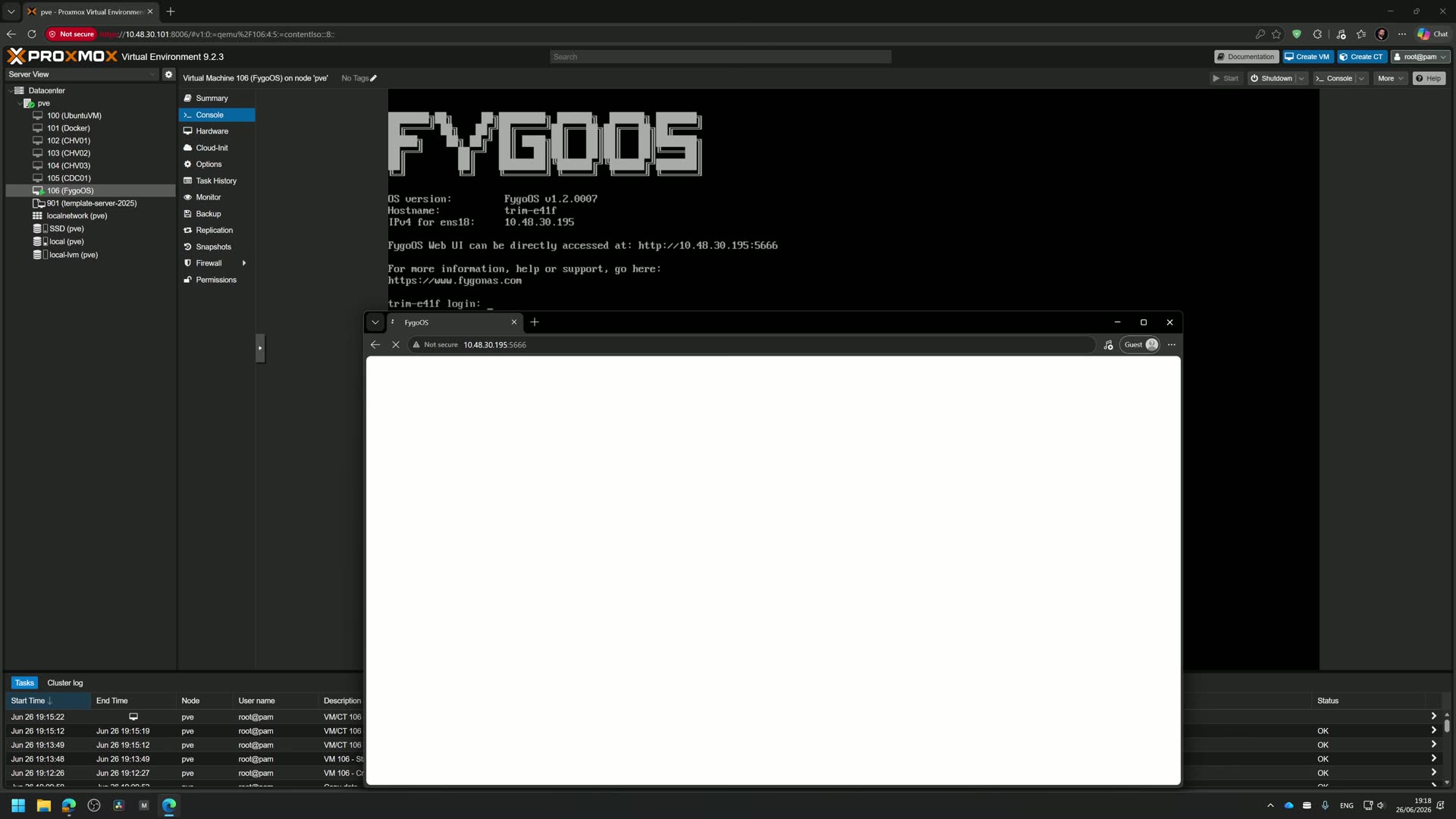
That last step is the one most people skip. Watching the degraded warning appear in a VM costs nothing and tells you exactly what you’ll see on the day a real drive dies.
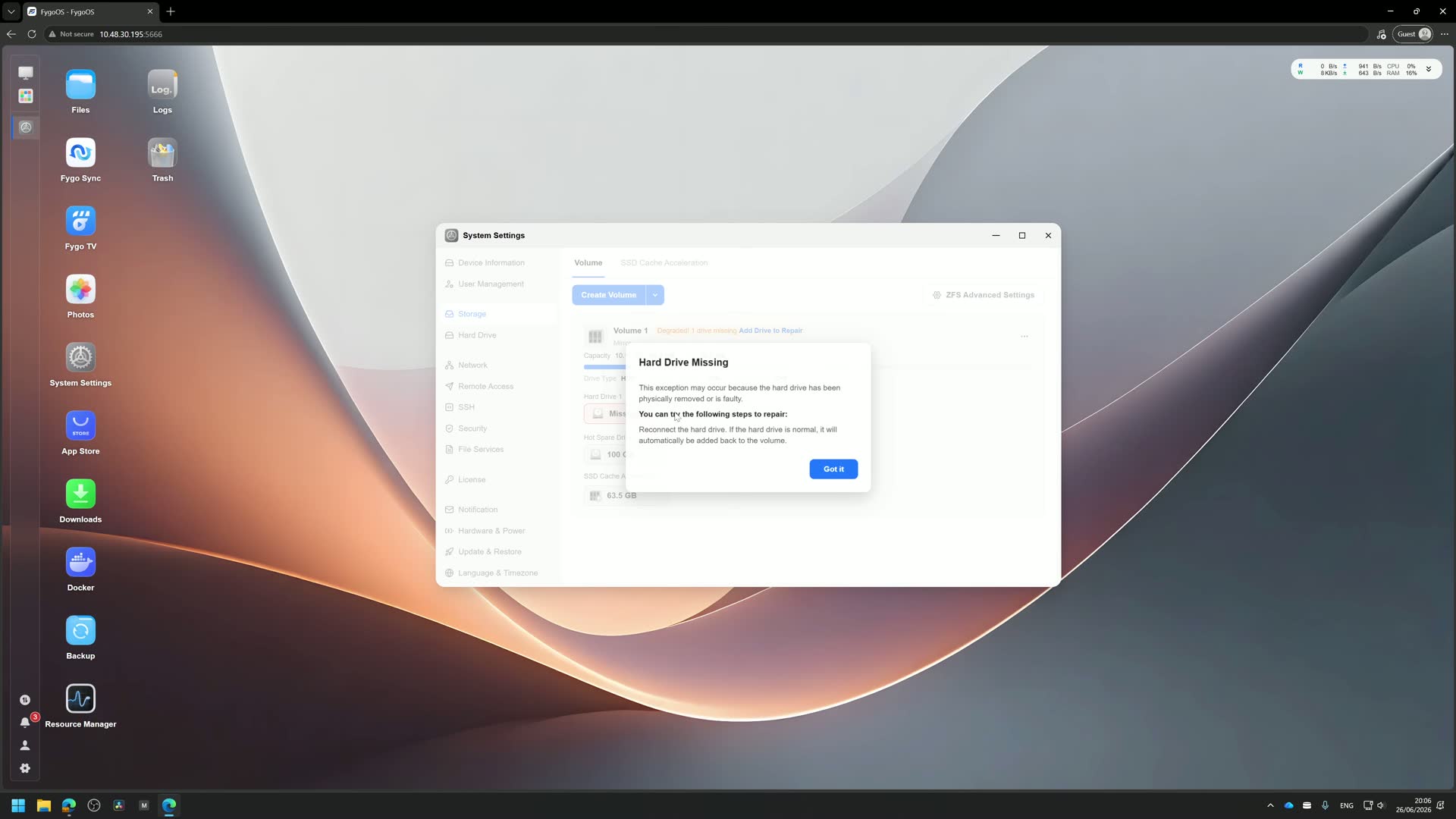
If you’ve never built a VM before and it refuses to start, check that hardware virtualization (Intel VT-x or AMD-V) is enabled in your BIOS. That’s the setting that stops most first attempts.
The four jobs a home NAS has to do
Everything in this build is chosen around these four jobs. If a feature doesn’t serve one of them, it’s a nice-to-have.
1. Local media streaming
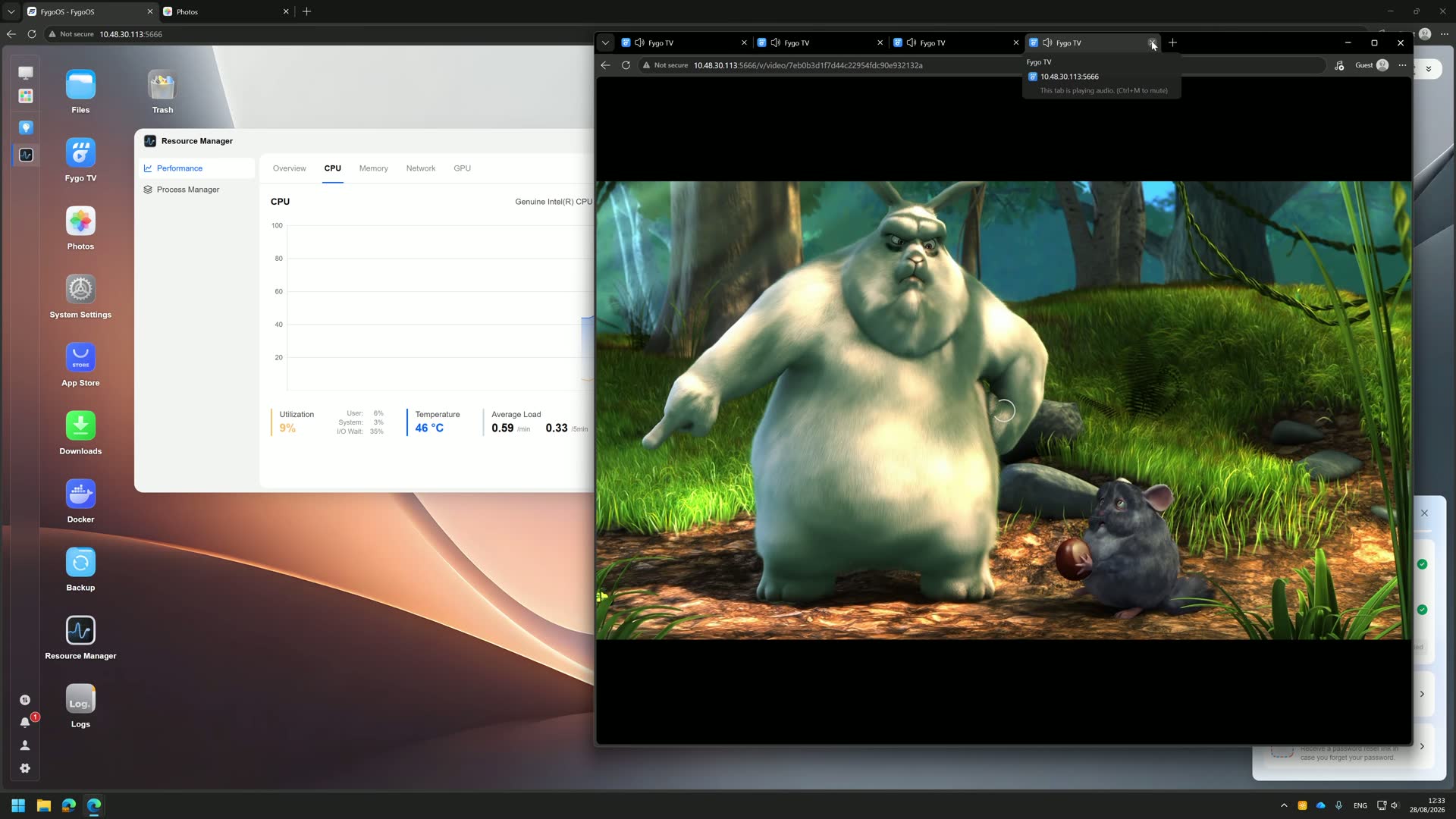
The NAS serves your movies and shows to TVs, phones and laptops around the house. The hard part is transcoding: when a 4K file needs to play on a device that can only handle 1080p, something has to convert it on the fly. Doing that on the CPU alone brings a low-power chip to its knees. An Intel iGPU with Quick Sync does it in hardware and barely raises the CPU load.
2. Private photo management
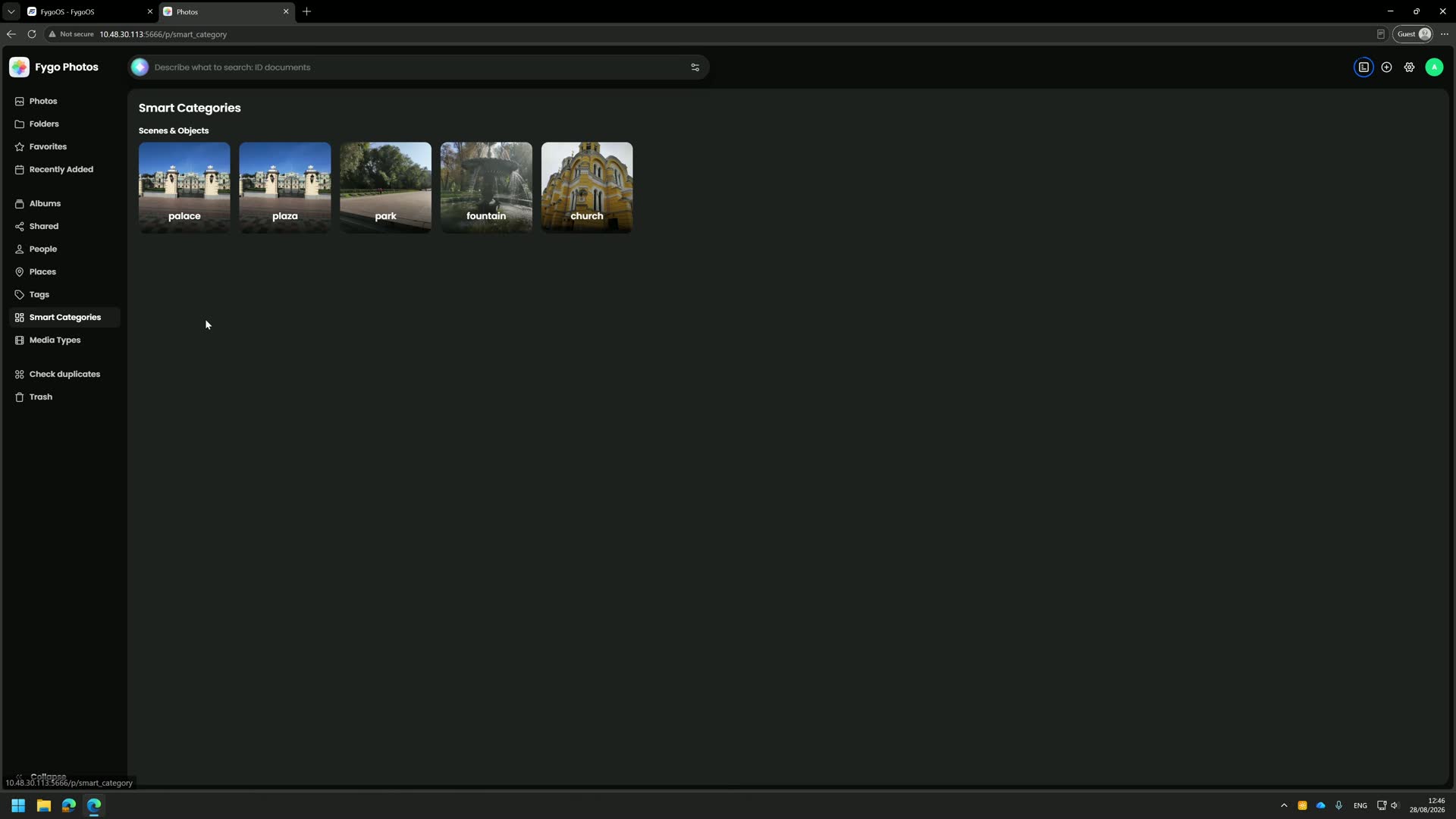
Phones back up automatically to the NAS, and face recognition and search run on the box itself. Nothing goes to a third-party data centre. For a lot of households this is the feature that justifies the whole project, because it replaces a paid cloud photo subscription.
3. File sharing across Windows and Mac
Network shares that show up as a drive letter on Windows and in Finder on a Mac. Nothing exotic, but it has to be reliable and the permissions have to make sense.
4. A central backup target
Household laptops back up to the NAS instead of to a USB drive that lives in a drawer. One caveat I’ll always repeat: a NAS is one copy in one location. It’s a good backup target, but it isn’t your whole backup strategy.
The hardware I used (and what I’d tell you to buy)
Most of this came off my shelf. That’s the honest reason it looks the way it does.
| Part | What I used | What I’d recommend for a first build |
|---|---|---|
| Board + CPU | CWWK M11 mini ITX with an Intel i5-8265U | Any efficient board with an Intel iGPU and enough SATA ports |
| RAM | 2x 32 GB Crucial SO-DIMM (64 GB) | 16 GB |
| Storage pool | 4x WD Red 3 TB in RAID-Z1 | Four drives in RAID-Z1 |
| Cache | 2x 1 TB NVMe | Optional for most homes |
| OS drive | Samsung 850 EVO 250 GB SATA SSD | Any small, separate SSD |
| PSU | ATX unit for now, an SFX 450 W waiting for the case | 350 to 450 W is plenty |
RAM: 64 GB is overkill
I bought that RAM in November 2024 for about €142. The same kit costs around €700 today, so I’m not telling anyone to copy it. For a first NAS, 16 GB is a comfortable start. You’ll see the old “1 GB of RAM per TB of ZFS storage” rule quoted everywhere; treat it as a loose ceiling rather than a requirement. It mostly comes from setups using deduplication, which a home NAS doesn’t need. More RAM means more caching and a snappier box, not a working versus broken box.
Storage: RAID-Z1, two NVMe drives and a separate OS SSD
Four 3 TB drives in RAID-Z1 means one drive can fail without losing data, and you keep roughly three drives’ worth of capacity. That’s a reasonable trade for a home.
The two NVMe drives are set up as cache. Honestly, the write cache is sized for a workload my household barely generates. If you’re building on a budget, skip it and add it later if you ever feel the need.
The OS goes on its own small SSD. Give the installer a dedicated drive so it doesn’t take over the fast storage you’d rather use for data or cache.
Wipe second-hand drives before you use them, then check the boot menu for leftover UEFI entries. Those cost me a nine-minute boot fight before the installer would come up.
Power: you’ll run out of connectors before watts
A small NAS draws very little, so wattage is almost never the problem. SATA power connectors are. Count the drives you plan to run (including the ones you’ll add later) and check how many SATA power plugs the PSU actually has, and in what layout, before you buy it.
Setting up Fygo OS
The setup flow explains its choices in plain language. When it asks about the file system, it tells you why ZFS is worth it (it checksums your data and can repair silent corruption when it has redundancy) without drowning you in jargon. For a beginner that matters: you understand what you picked instead of clicking next.
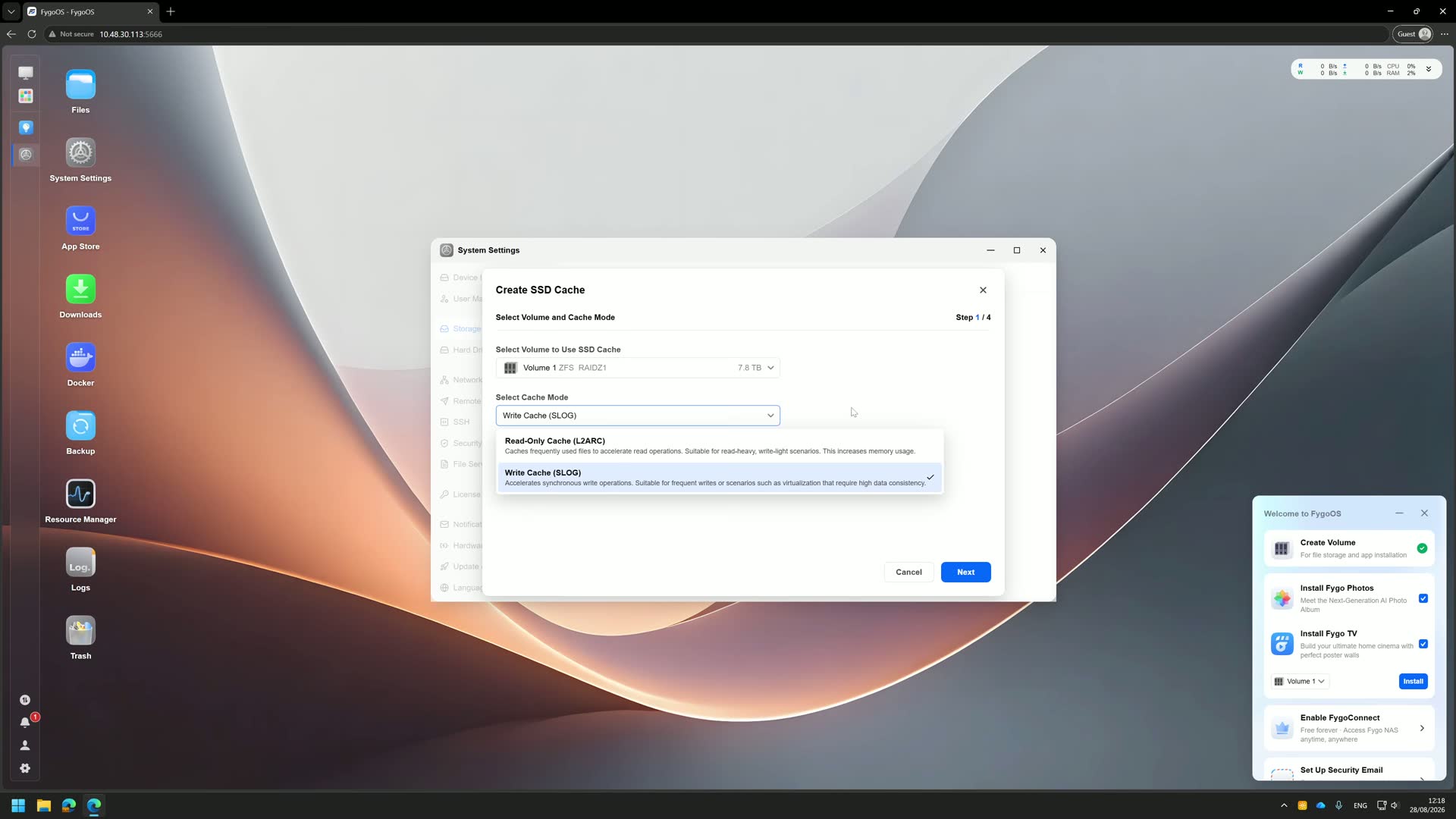
From there it’s the usual order: create the pool, create shares, create users, install the apps you want. When the setup asks about SSD cache, you’re deciding between L2ARC (read cache) and SLOG (write cache). For most homes, read cache is the useful one.
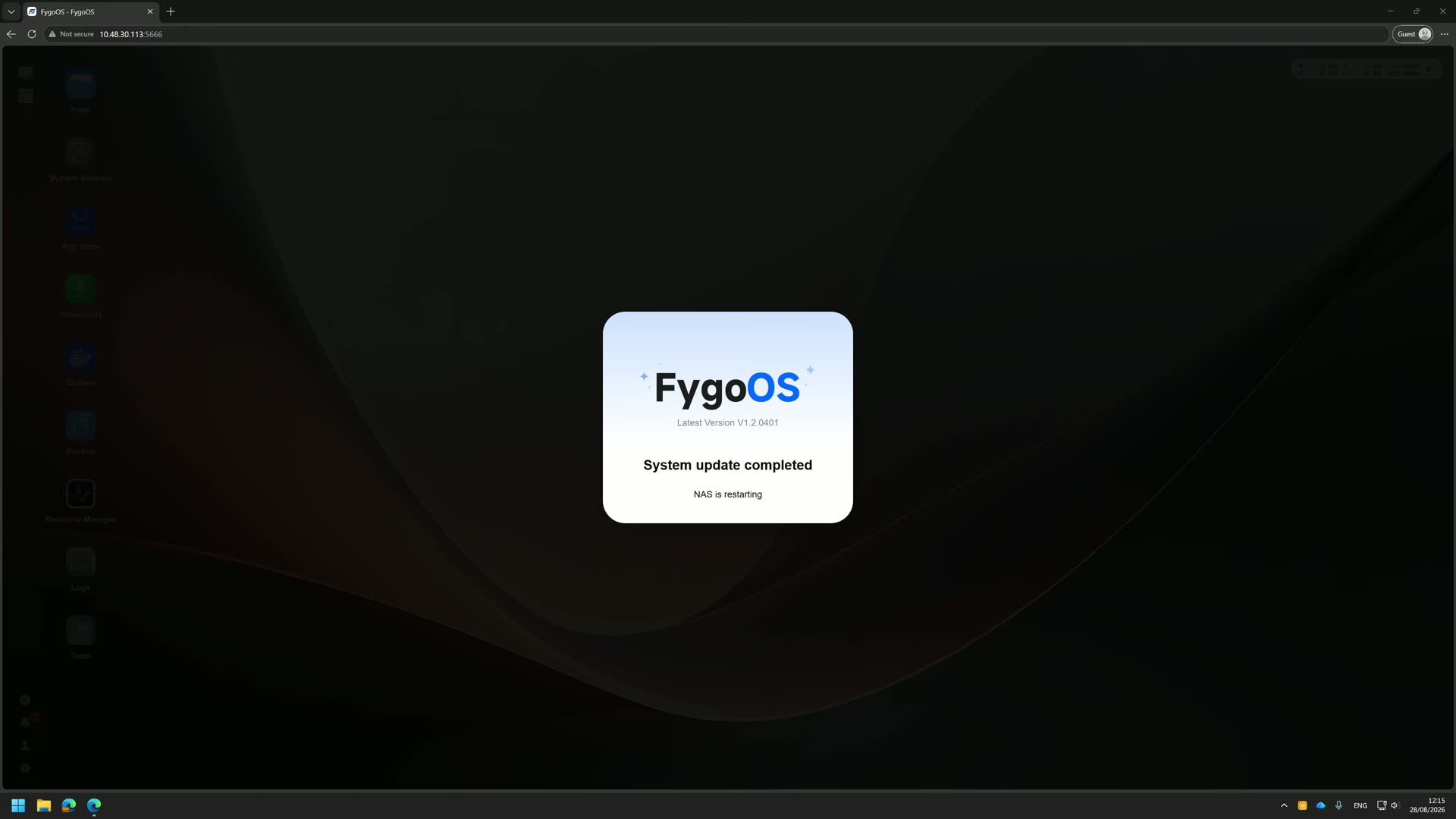
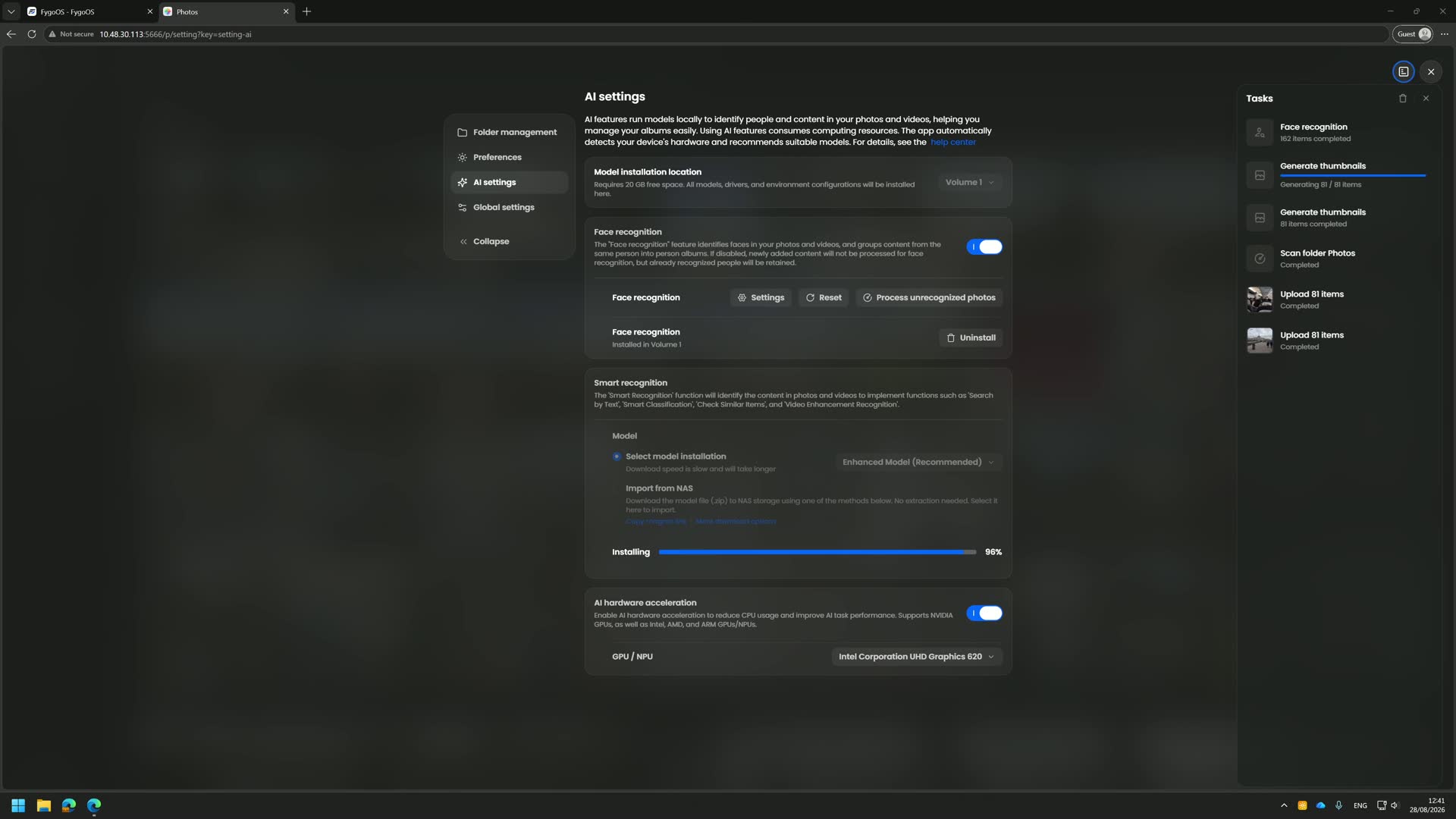
The AI settings are where hardware acceleration gets toggled on. Once enabled on your specific iGPU, the photos app can process your library for face recognition and smart categories without maxing the CPU.
The gotcha: your media folder looks empty
This is the one that will catch you. You point the media app at your movies folder, the scan finishes and the library shows nothing.
Nothing is broken. The media app runs under its own isolated service account, which is good security practice: if the app is ever compromised, it can’t read everything on the NAS. The catch is that this account has no rights to your media folder until you give them.
The fix:
- Open the shared folder’s permission settings.
- Find the media app’s service account.
- Give it read access (it doesn’t need write).
- Rescan the library.
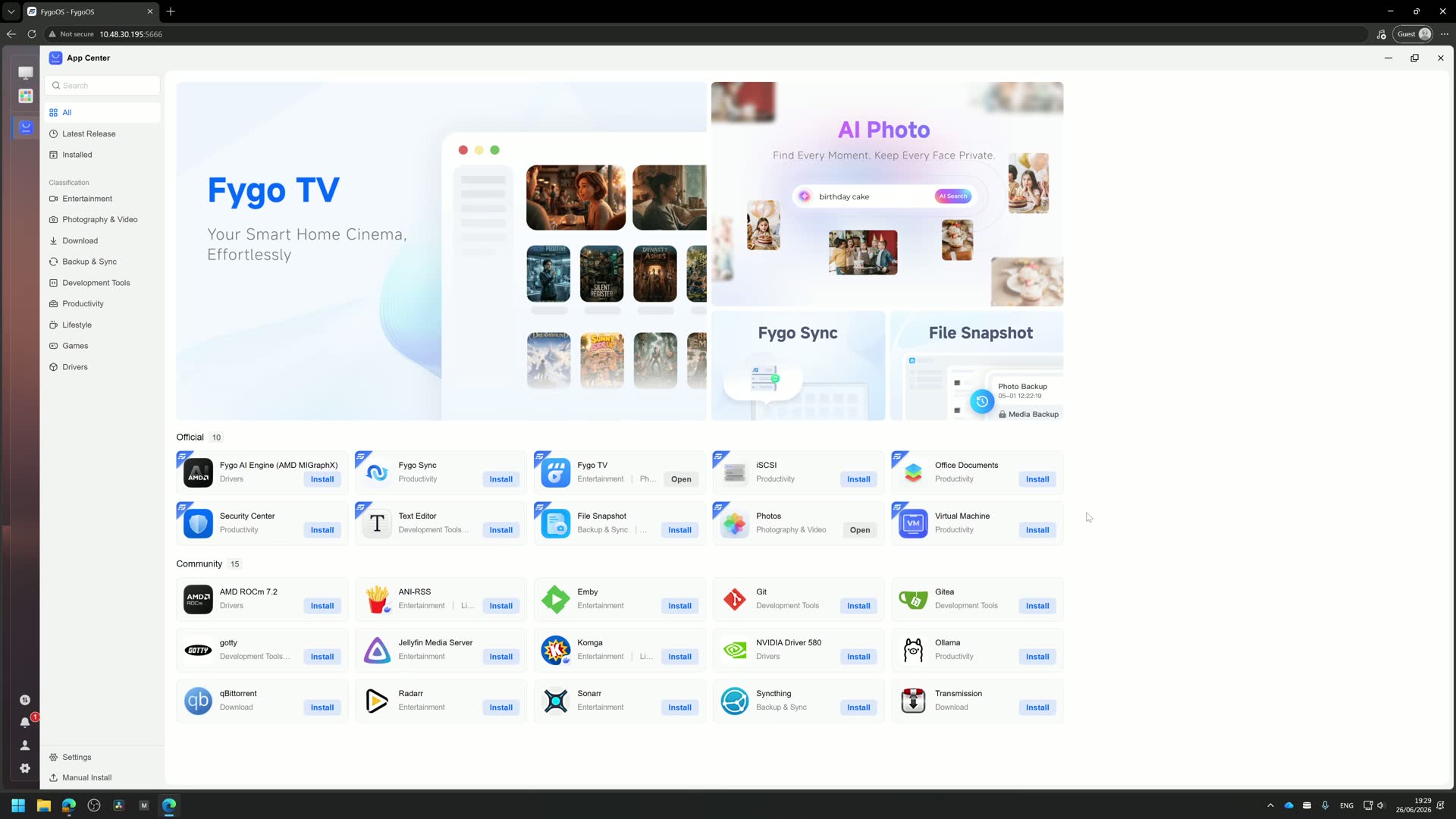
After that, the library loads with cover art and metadata. The App Store has Fygo TV pre-installed for streaming, plus AI Photo, File Snapshot for backups, and a long list of community apps.
Licensing: what the free tier gets you
The free tier supports up to four drives, which fits a first build like this one. I hit that ceiling on day one, with two spare WD Reds sitting on the shelf. If you need more drives, there’s a paid licence. The lifetime licence is tied to your Fygo OS account, and Fygo confirmed to me that it transfers to a new build as long as it’s registered to that account.
Pricing and the full feature list are on fygonas.com.
What’s next for this build
Right now the board sits in an open test setup. The case is up to you: I’m running a poll on the YouTube community tab, and I’ll build it into the winning case on a live stream.
If you want to understand storage and backups properly rather than just trusting a dashboard, Mylemans Labs walks through it in order.
FAQ
Can I run a NAS and a homelab on the same machine?
You can, but I wouldn’t for a first build. When the experiments break the box, your files and backups go offline with it. Keep the NAS dedicated and run the lab on separate hardware or in VMs.
How much RAM does a ZFS home NAS need?
16 GB is a comfortable starting point for a home NAS. The “1 GB per TB” rule is mostly relevant when deduplication is enabled, which home setups rarely need. Extra RAM improves caching but isn’t required for the system to work.
Is RAID-Z1 safe enough for a home NAS?
RAID-Z1 survives one drive failure, which is a reasonable level for a home pool of four smaller drives. It doesn’t replace backups: keep an extra copy of anything you can’t lose somewhere other than the NAS.
Is Fygo OS free?
Fygo OS has a free tier that supports up to four drives. For more drives there’s a paid licence, and the lifetime licence is tied to your account so it moves with you to future builds.
Why does my NAS media library show no files?
Most often the media app’s service account has no permission on the folder. Give that account read access to the media share and rescan the library.
Win a Fygo OS licence
Fygo gave me five one-year Fygo OS keys for you. Two go to the best homelab showcases (post yours on the YouTube community tab or on r/mylemansonline), and Fygo picks one more winner from those entries. Two go to the best answers to the question I open the video with. Entries and the case poll close on Friday 25 September 2026.
Prefer to watch? The full build is in the video, and there’s more homelab and IT content over on Mylemans Online on YouTube.